
Payment Links Quickstart
Learn how to create and share payment links using the HL Hunt Dashboard.
Step 1: Navigate to Payment Links
- In the Dashboard, expand Payment Tools in the left navigation.
- Click Payment Links.
- Click Create Payment Link.
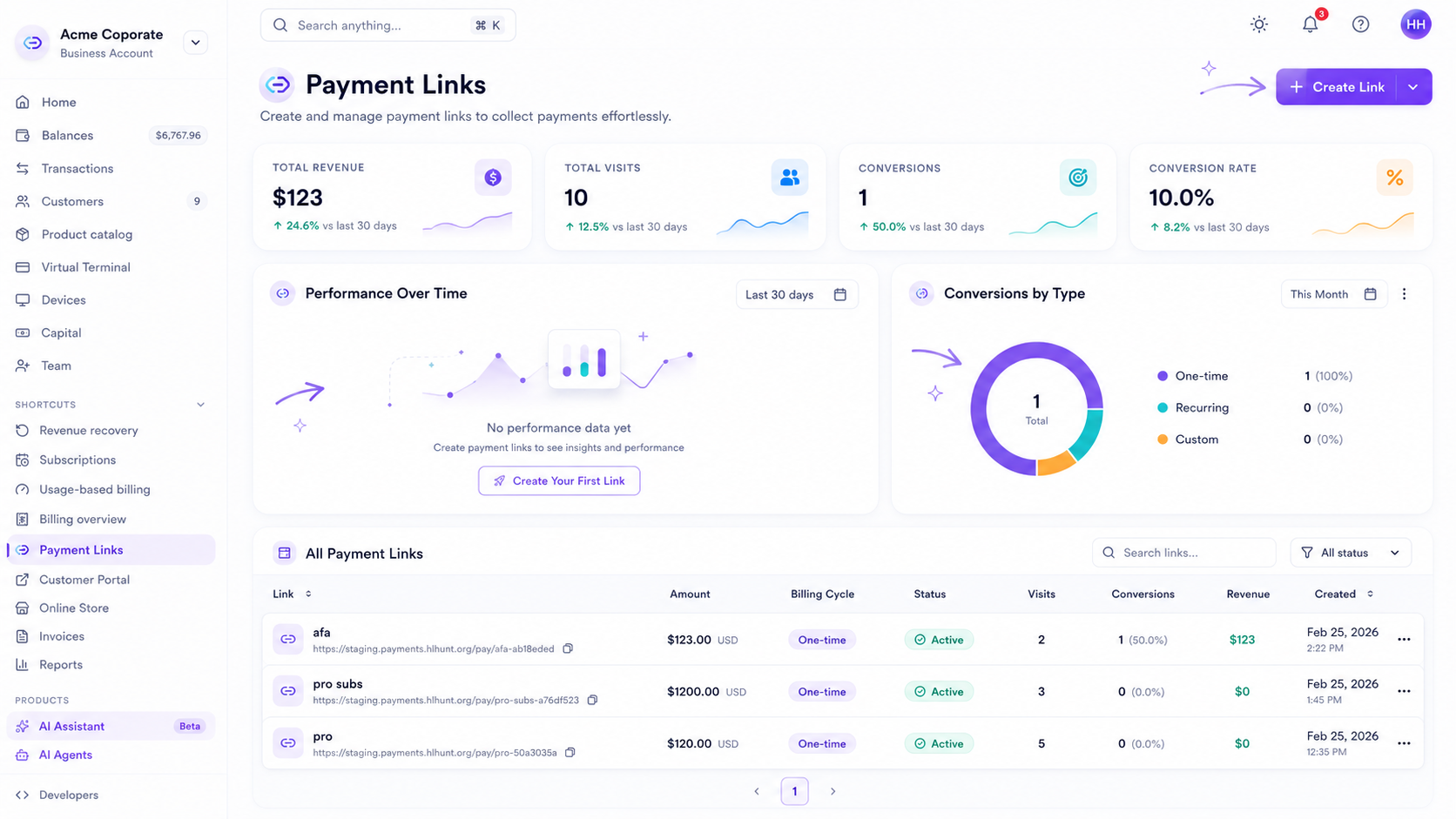
Step 2: Create a Payment Link
Fill in the payment link details and click Create Payment Link to generate your link.
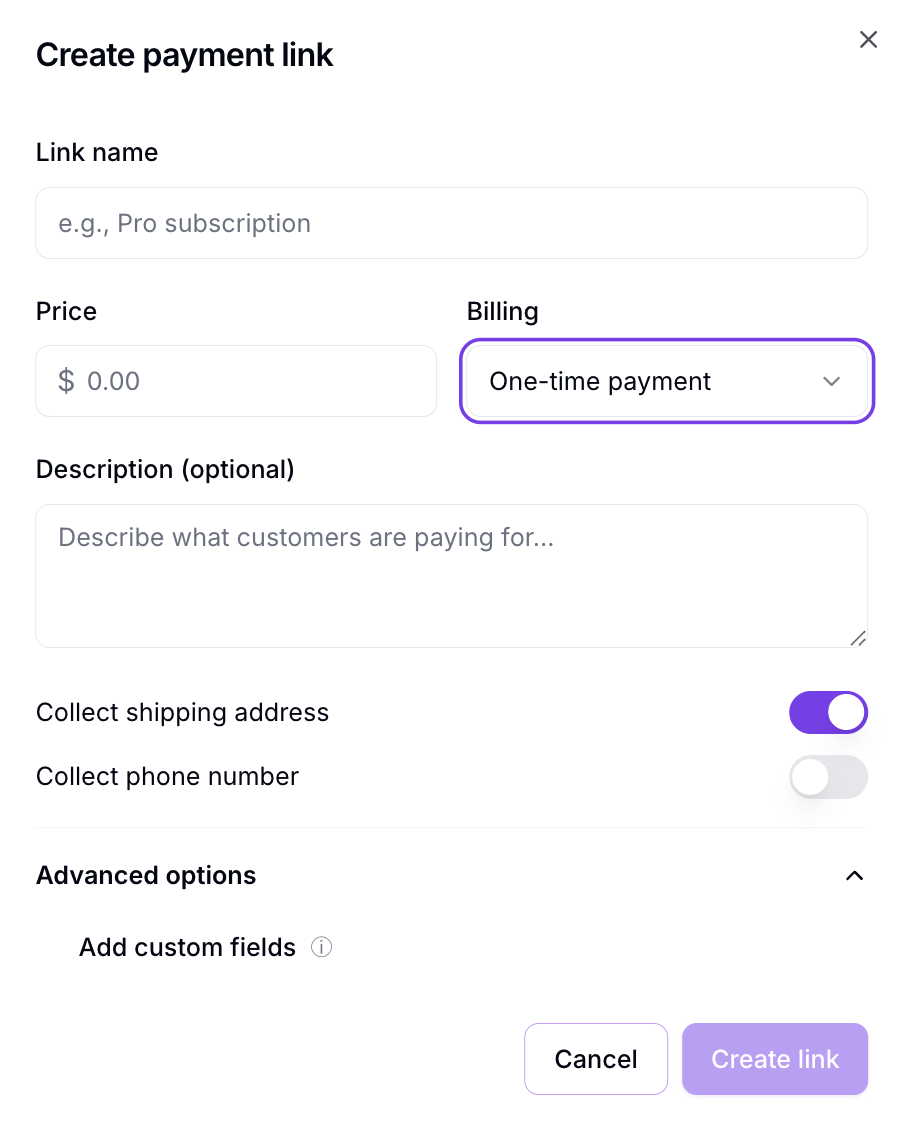
When creating a payment link, you'll be asked to fill out the following:
- Link name — e.g., "Pro subscription"
- Price — the amount to charge
- Billing — one-time payment or recurring
- Description (optional) — describe what customers are paying for
- Collect shipping address — toggle on if needed
- Collect phone number — toggle on if needed
- Advanced options — custom fields for additional data collection
Payment Link Fields
| Field | Description |
|---|---|
| Payment Link Name | Internal label to identify the link in your records. Not visible to buyers. |
| Transaction Type | Choose Sale or Authorization. If Authorization, you must select Credit/Debit, Apple Pay, or Google Pay as the payment method. |
| Amount Type | Fixed: Set a specific amount. Variable: Let buyers enter an amount within min/max limits you define. |
| Link Type | Single Use: Link works once. Multiple Use: Link can be reused. |
| Link Validity | How long the link remains active before expiring. |
| Allowed Payment Methods | Select which payment options to accept. |