
Invoices Quickstart
Learn how to quickly create invoices with the HL Hunt Dashboard.
Step 1: Create an Invoice
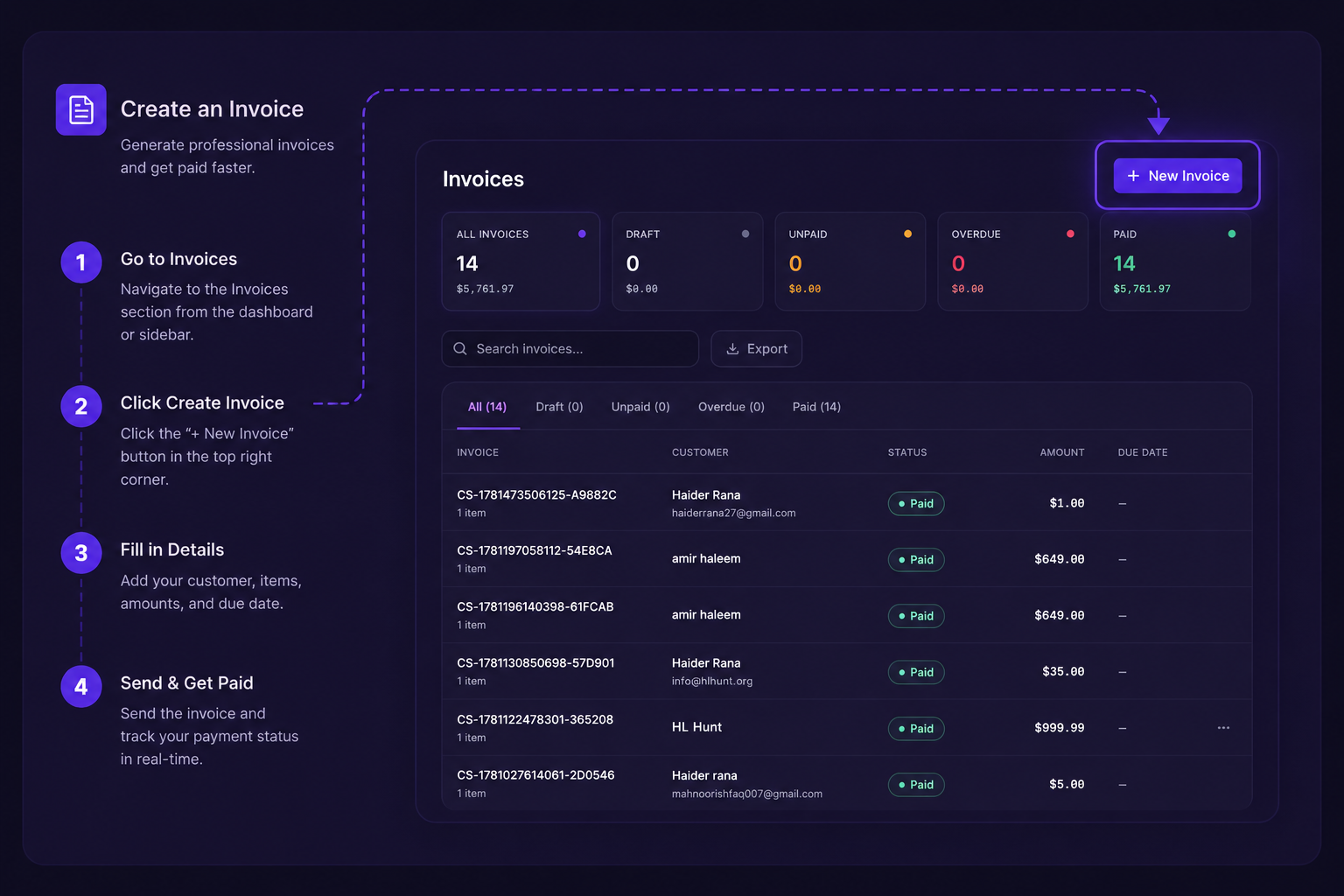
Navigate to Invoices
- In the Dashboard, expand Payment Tools in the left navigation.
- Click Invoices.
- Click Create Invoice.
The creation form displays with a live preview that updates as you fill out each section.
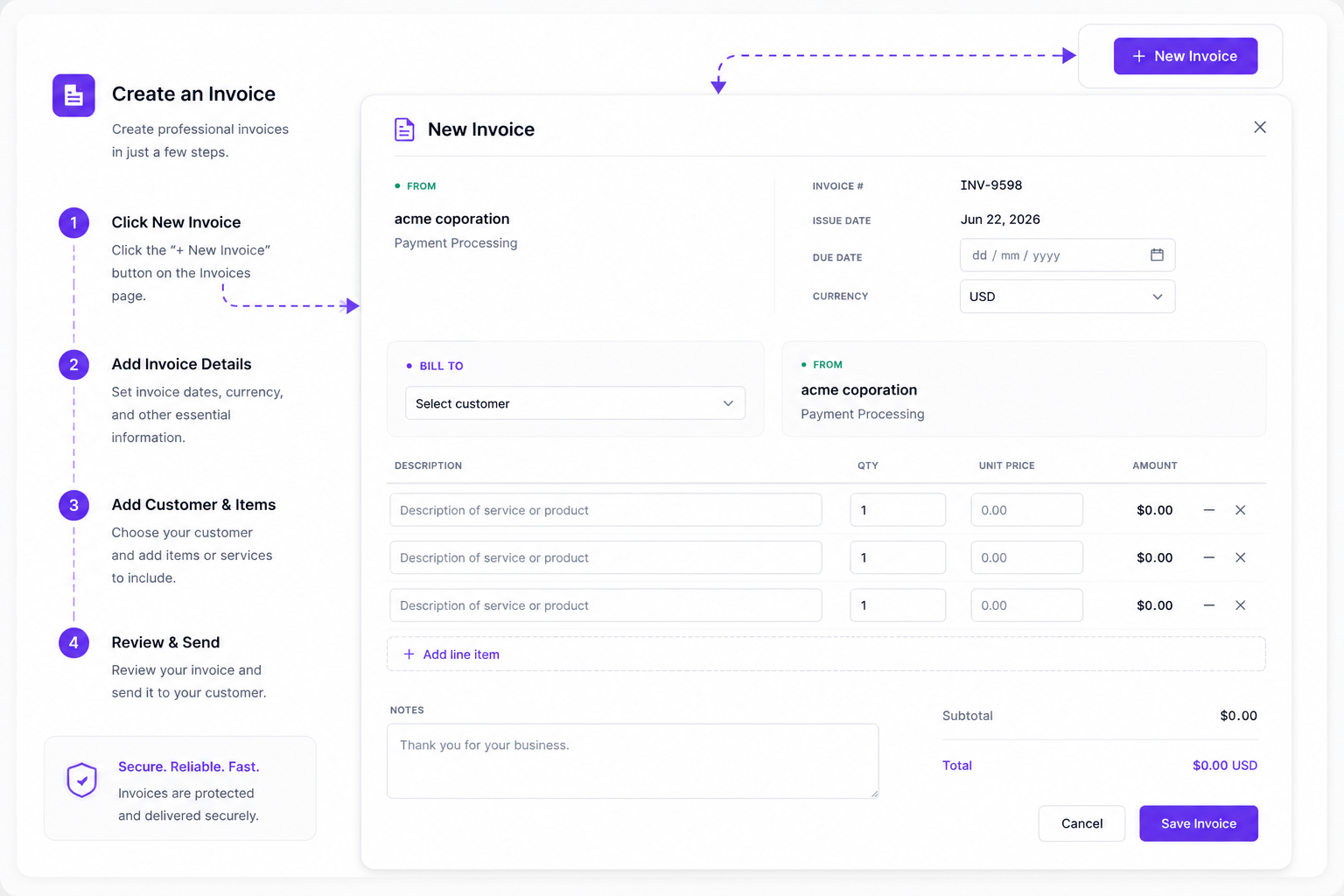
When creating an invoice, fill out the following details:
| Field | Description |
|---|---|
| Invoice Name | Internal label to identify the invoice in your records. Not visible to buyers. |
| Invoice Date | The date the invoice was issued. Defaults to today but can be customized. |
| Due Date | When payment is expected. Select a preset number of days or enter a custom date. |
Buyer Information
| Field | Description |
|---|---|
| Select or Create Buyer | Choose an existing buyer from your records or add a new one. |
| Buyer Details | Name, email, phone, and billing address. |
| Buyer Type | Individual or business. |
Click the Pencil icon to edit buyer information after selection.
Delivery Options
| Option | Description |
|---|---|
| Email Invoice | Automatically send the invoice to the buyer's email address when created. |
| Additional Recipients | Send to multiple email addresses (separate with enter, space, or tab). |
| Manual Delivery | Skip automatic sending and share the link manually later. |
Step 2: Share the Invoice
Once the invoice is created, you can share it with the buyer:
- Email delivery — automatically sent to the buyer's email when the invoice is created.
- Copy link — share the hosted payment page link directly via any channel.
- Download PDF — generate and send the invoice PDF manually.
For more details, see Sharing Invoices.
Step 3: Track the Invoice
Monitor the status of your invoices directly from the Dashboard:
- Open — invoice has been sent but not yet paid.
- Partially Paid — buyer has made a partial payment.
- Paid — full payment has been received.
- Overdue — payment is past the due date.
- Void — invoice has been canceled.
Real-Time Updates with Webhooks
Subscribe to invoice webhook events to get real-time notifications when an invoice changes state:
invoice.created— a new invoice was generated.invoice.paid— the buyer completed full payment.invoice.partially_paid— a partial payment was received.invoice.overdue— the due date has passed without full payment.
Learn more about configuring webhooks in the Webhooks guide.