
Managing Subscriptions
Learn how to manage your recurring subscriptions on the HL Hunt Dashboard — edit, cancel, pause, and resume subscriptions.
Editing a Subscription
To edit a subscription from the Dashboard:
- Navigate to Payment Tools → Subscriptions.
- Find the subscription you want to edit.
- Click the three dots (⋯) menu on the subscription row.
- Select Edit.
- Update the subscription details and click Save.
You can update the following fields:
- Subscription name
- Recurring price
- Payment instrument — switch to a different card or bank account
- Billing frequency
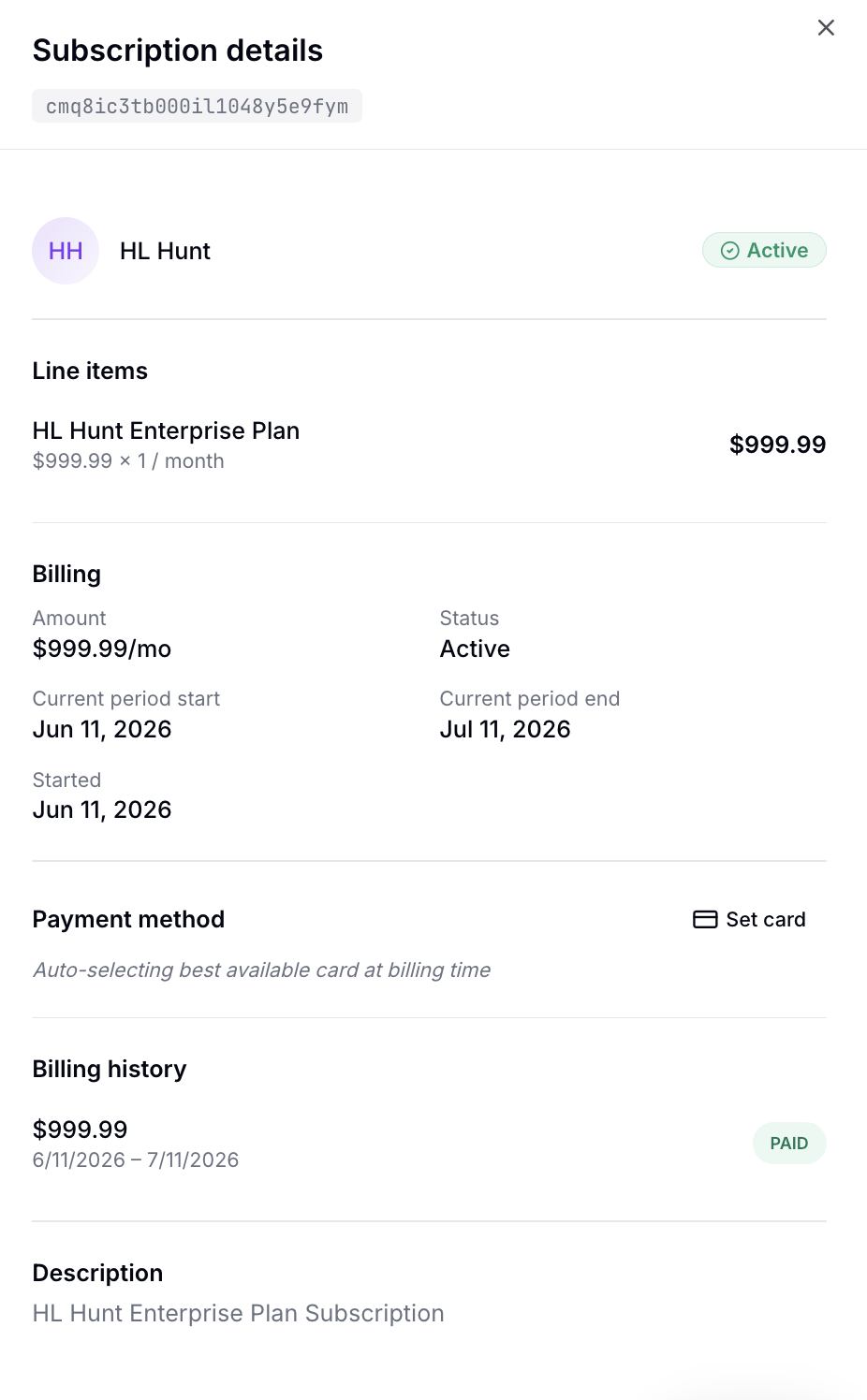
Canceling a Subscription
To cancel a subscription:
- Navigate to Payment Tools → Subscriptions.
- Click the three dots (⋯) menu on the subscription row.
- Select Cancel Subscription.
- Confirm the cancellation.
Note: Canceling a subscription stops all future charges. Any charges already processed will not be reversed — use Refunds if needed.
Pausing & Resuming
You can temporarily pause a subscription to stop billing without canceling:
- Pause — stops all future charges. The subscription moves to a Paused state.
- Resume — restarts billing from the next cycle. HL Hunt will immediately attempt a charge for the current period.
Both actions are available from the three dots (⋯) menu on the subscription row.
Subscription States
| State | Description |
|---|---|
| Active | Subscription is active and billing on schedule. |
| Trial | Subscription is in a trial phase. No charges until trial ends. |
| Paused | Billing temporarily stopped. Can be resumed. |
| Past Due | Payment failed. Retries are in progress (see dunning schedule). |
| Canceled | Subscription is permanently ended. No further charges. |