
Payment Arrangements
Split large payments into scheduled installments — create arrangements from the dashboard or via the API.
How It Works
Payment Arrangements let you split a large payment into scheduled installments. You define the total amount, an upfront payment, and the number/frequency of remaining installments. Your customer pays the upfront amount via a secure link, their card is captured on file, and HL Hunt automatically charges the remaining installments on schedule.
You create an arrangement — define total, upfront amount, installments, and frequency.
Send the payment link — HL Hunt generates a unique payment URL for your customer.
Customer pays upfront — their card is securely captured via PCI Vault.
Auto-charge installments — HL Hunt charges the card on file on each due date.
Failed payment retries — retries with exponential backoff (0h, 4h, 24h, 72h).
Completion — once all installments are paid, the arrangement is marked as completed.
Option A: Create via Dashboard
No code required — create and manage arrangements entirely from the HL Hunt dashboard.
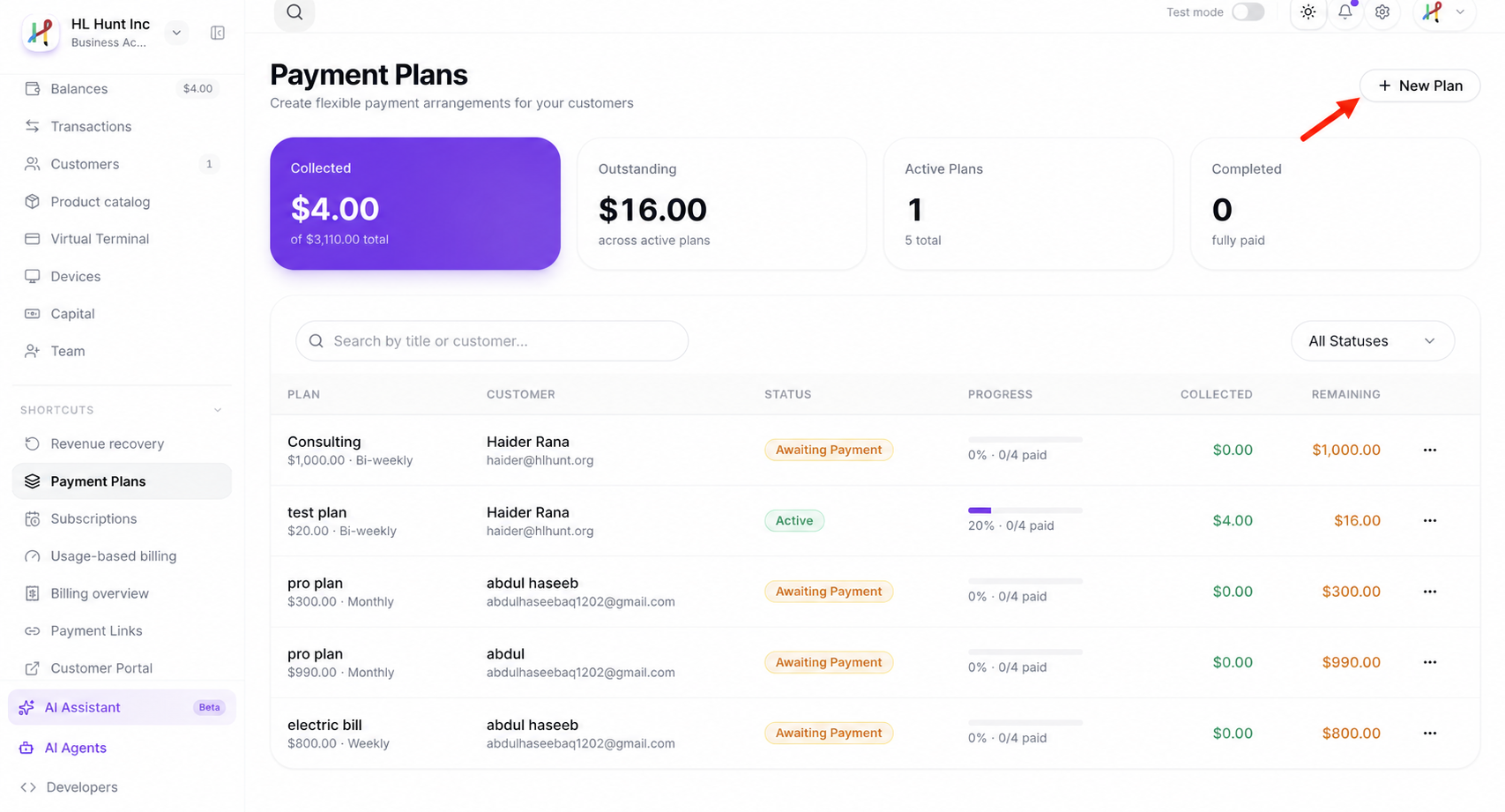
Navigate to Arrangements
In your HL Hunt dashboard, click Arrangements in the left sidebar. This page shows all your existing payment arrangements with their status, customer info, and amounts.
Create a New Arrangement
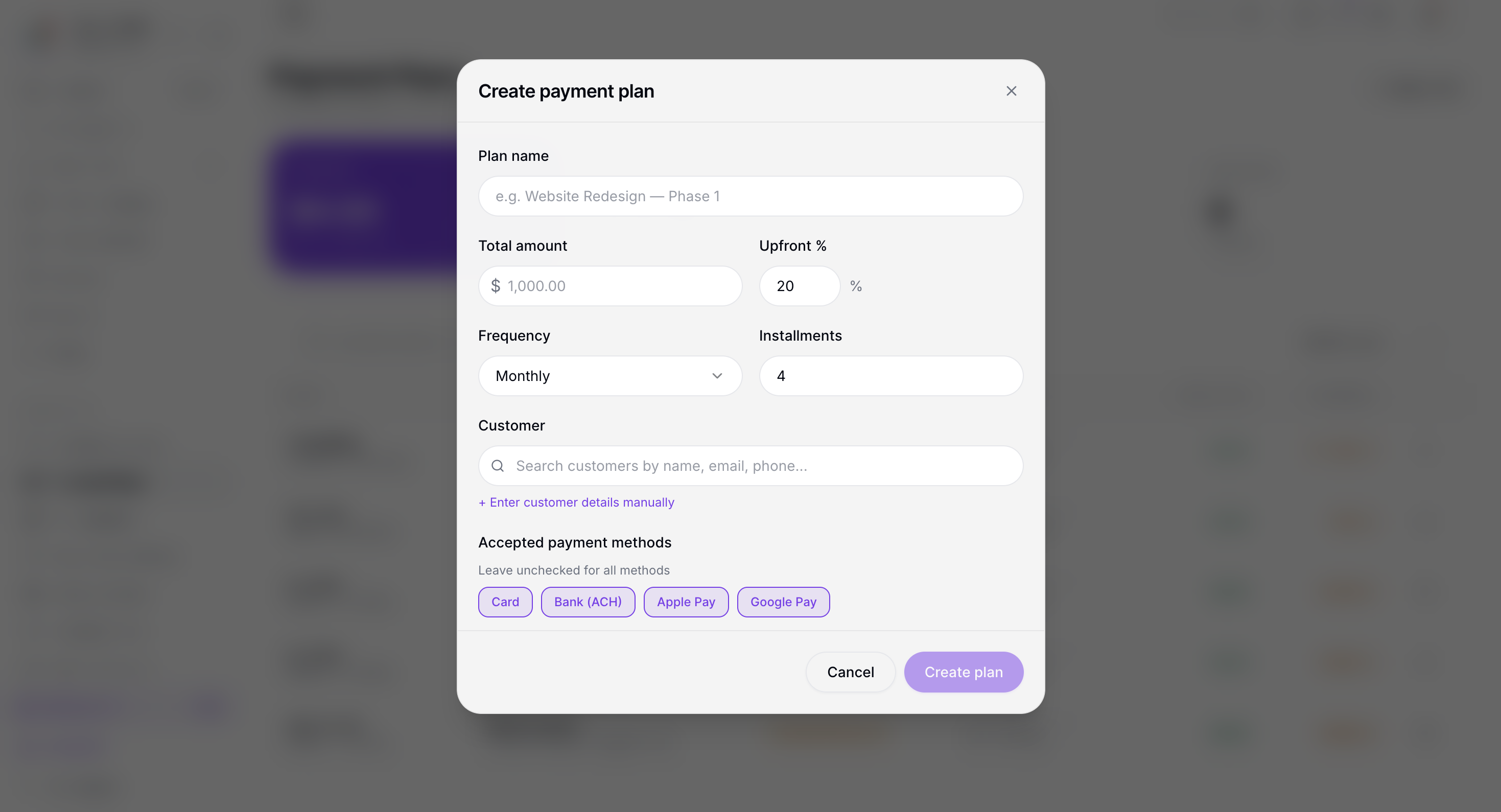
Click Create Arrangement. Fill in the details:
Review & Send
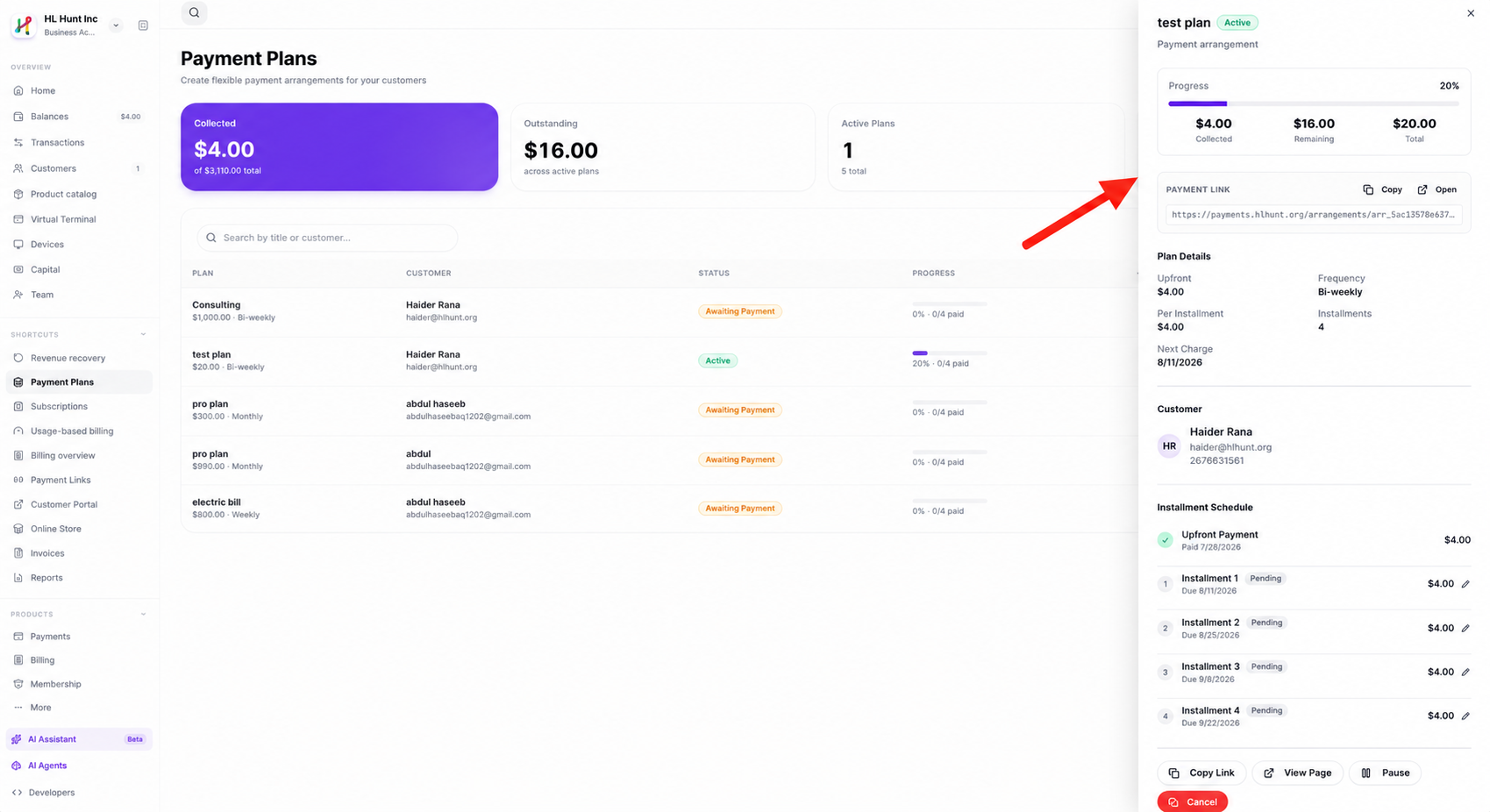
After creating, a detail panel appears on the right showing the payment link, installment schedule, and actions. Click Send to email the link, or copy it to share manually (text, WhatsApp, etc.).
Option B: Create via API
Prerequisite: You need a Secret API key (sk_live_xxx). Go to Developers in your dashboard to create one.
bash
curl -X POST https://api.hlhunt.org/v1/arrangements \
  -H "Authorization: Bearer sk_live_your_api_key" \
  -H "Content-Type: application/json" \
  -d '{
    "title": "Website Development",
    "description": "Custom website build - 4 monthly payments",
    "total_amount": 400000,
    "upfront_amount": 100000,
    "installment_count": 3,
    "frequency": "MONTHLY",
    "customer_name": "John Smith",
    "customer_email": "john@example.com",
    "start_date": "2026-09-01"
  }'
The response includes a payment_url — share it with your customer to collect the upfront payment and capture their card.
What Happens Next
Customer pays upfront
They see a secure checkout page, pay the upfront amount, and their card is captured. Status changes to Active.
Automatic installment charges
HL Hunt auto-charges the card on file on each due date. Failed charges retry up to 4 times (0h, 4h, 24h, 72h).
Completed
Once all installments are paid, the arrangement is marked as Completed.
Managing Arrangements
From the dashboard, click any arrangement to open its detail panel. Or use the API:
| Action | Dashboard | API |
|---|---|---|
| Pause | Click Pause in sidebar | POST /v1/arrangements/:id/pause |
| Resume | Click Resume in sidebar | POST /v1/arrangements/:id/resume |
| Cancel | Click Cancel in sidebar | POST /v1/arrangements/:id/cancel |
| Send | Click Send or copy link | POST /v1/arrangements/:id/send |
| Update Plan | Not available in dashboard | PATCH /v1/arrangements/:id |
| Update Card | Not available in dashboard | POST /v1/arrangements/:id/payment-method |
Status Reference
| Status | Meaning |
|---|---|
| Draft | Created but not yet sent to customer |
| Pending | Sent to customer, awaiting upfront payment |
| Active | Upfront paid, installments being charged on schedule |
| Paused | Temporarily paused — no charges until resumed |
| Completed | All installments paid in full |
| Canceled | Arrangement canceled, remaining installments voided |
| Defaulted | Too many failed installments (configurable via max_failed_installments) |
Webhook Events
Go to Developers → Webhooks and subscribe to arrangement.* events:
| Event | When |
|---|---|
arrangement.created | New arrangement created |
arrangement.updated | Plan modified (amount, frequency, or payment method) |
arrangement.upfront_paid | Customer paid the upfront amount |
arrangement.installment_paid | An installment was successfully charged |
arrangement.installment_failed | An installment charge failed (includes retry schedule) |
arrangement.completed | All installments paid |
arrangement.paused | Arrangement was paused |
arrangement.resumed | Arrangement was resumed |
arrangement.canceled | Arrangement was canceled |
arrangement.defaulted | Too many failed installments (when block_on_failure=true) |
arrangement.payment_method_updated | Card on file was swapped |
Tips
Optionally add a late fee (in cents) that is applied when all retry attempts fail: "late_fee_amount": 2500 adds $25.00.
Restrict accepted payment methods: "payment_methods": ["card"]. Options: card, ach, apple_pay, google_pay.
For customers who need extra time, pause the arrangement from the dashboard or API — no charges occur while paused.
Use custom frequency for non-standard schedules: "frequency": "CUSTOM", "interval_days": 3 charges every 3 days. Perfect for debt-collection plans like "$1/day for 100 days" or "$50 every 10 days".
Set "block_on_failure": false to enable skip-to-next mode — failed installments are marked failed but the plan keeps charging the remaining ones instead of defaulting. Ideal for "charge what you can" debt collection strategies.
Swap the card on file mid-plan with POST /v1/arrangements/:id/payment-method — useful when a debtor's card expires or is replaced.